Profiles
Examples
Additional Documentation
You can learn more about Profiles on BU TechWeb.
Images
If you choose to include headshots, keep the subject in the center, upload a square image (600 px x 600 px at a minimum), and avoid distracting backgrounds. WordPress will resize the image as if the subject is in the center, so if you put someone to the far left in a rectangular image, it’s very likely they’ll be cut off.
“Positions” taxonomy and related content
There are several taxonomies available on Profiles, one of them being the “Position” taxonomy, which has an additional option to add related content to a Profile. For example, the theme includes “Faculty” and “Staff” as terms within the “Position” taxonomy. The “Faculty” position includes related content and the “Staff” position does not. You can add additional terms if necessary and select whether related content should be included at the bottom of the Profile with that term applied. Related content for Profiles included “Related Work” and “Related News”.
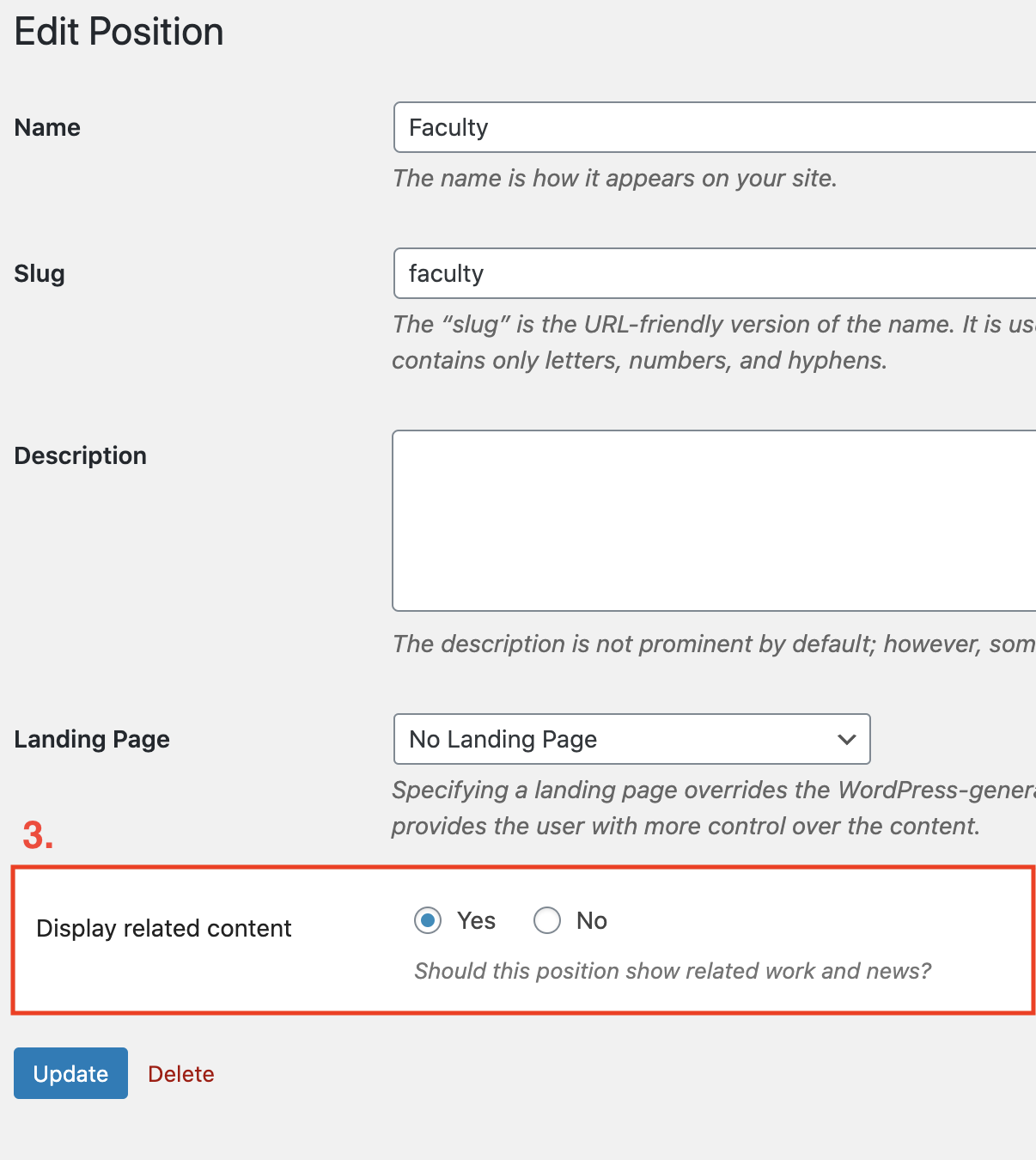
- To turn on/off related content for a Position term, go to Profile > Positions.
- Create a new Position or select an existing one from the list on the right.
- Under the “Display Related Content” field, select “Yes” or “No”.
- Save your changes.
Customize the related content titles
You can customize the titles that precede the related content on the Profiles.
- To customize the titles go to Settings > Theme Settings.
- Scroll to the bottom of the page where it says Profiles.
- Enter the custom titles.
- Save your changes.
