Add New Testimonial
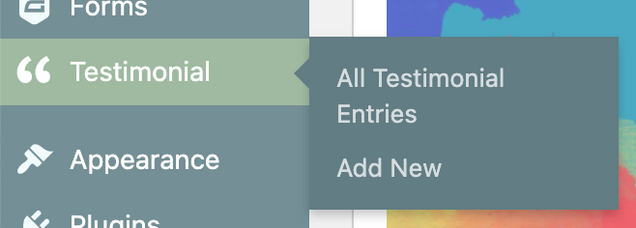
With the BU Testimonial Plugin activated on your theme, you can add testimonial post types to your site. To activate the plugin, select Plugins > BU Testimonial > Activate. To add a new testimonial, from the sidebar in the editor view, select Testimonial > add new.
Content Options
Several content options are available for content using the BU Testimonials plugin, they include:
- Quote
- Name (optional)
- Attribute (optional)
- Link (optional)
- Link Text (optional)
- Featured Image (optional)
When you have entered the appropriate information for your testimonial, select update to save your changes and publish your testimonial.

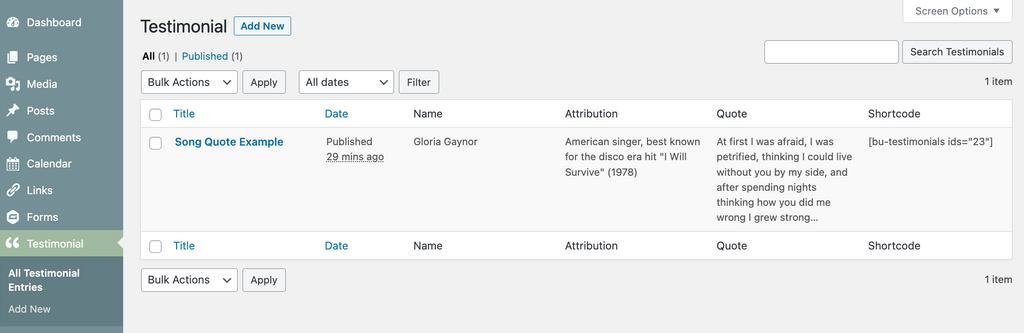
To access all your testimonial entries, visit Testimonial > All Testimonial Entries. From here, you will be able to search all entries using keywords from the Title, Date, Name, Attribution, Quote or Shortcode. You may also order alphabetically by Title or Date Published. Note: Each testimonial has a unique post ID, you will reference this ID number in the shortcode if you wish to add a testimonial to a page or post elsewhere on your site.