Add Slate CRM Form to a Page
Slate CRM forms can be embedded in a page.
Step 1: Edit Form
In Slate find the form embed code. This is currently available by editing the form and selecting Embed Form from the right vertical menu.

Step 2: Copy the embed code.

Step 3: Select Embed Code

Step 4: Add form embed to a Page.
The Slate embed code consists of two parts, the first part of the embed code is a <div> tag with a unique ID on it and “Loading…” placeholder text. The second part is inside an opening <script> tag that is closed by a closing </script> tag.
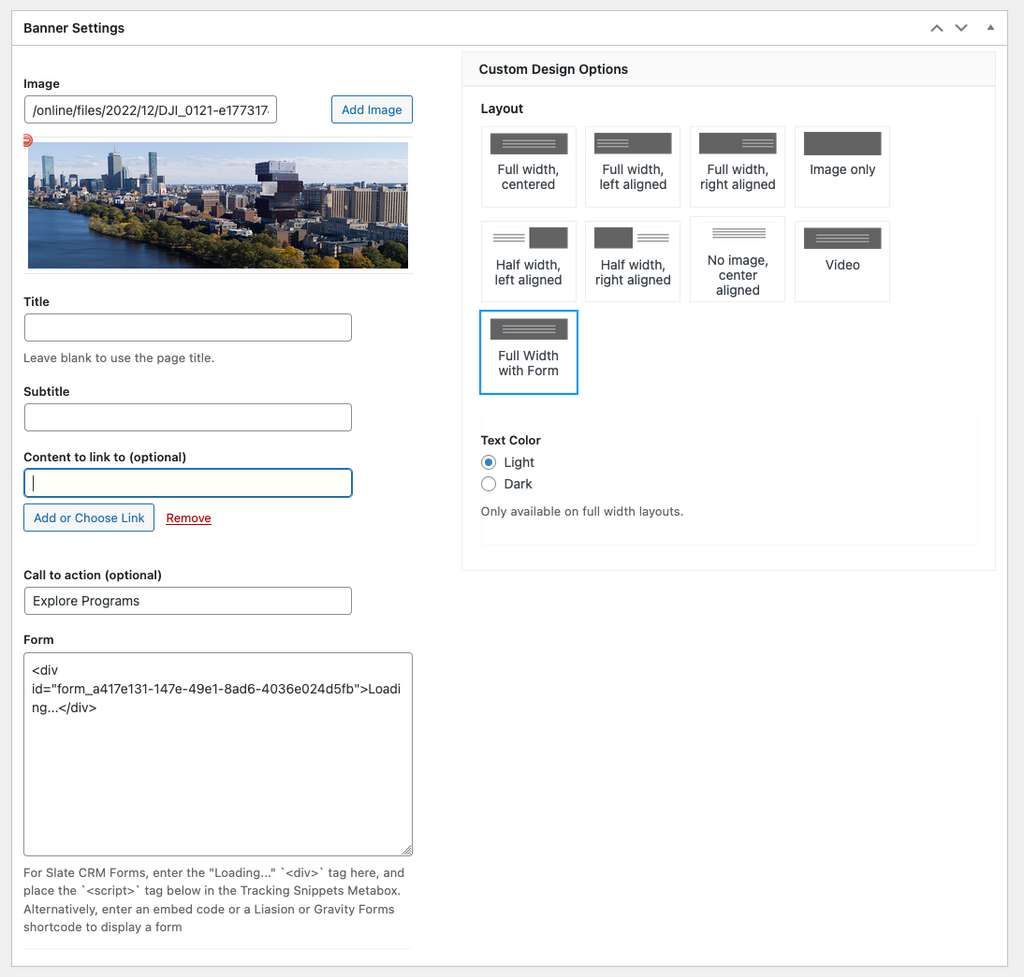
The <div> should be placed where the form needs to appear. For this theme in most cases that would mean placing it in the Form code field in the Banner Layout that supports a form.

The Script tag must be separated from the div and placed in the Tracking Snippets metabox at the bottom of a page. If the <script> tag is placed in the main content area or a meta field it will be stripped out when the post is saved. It’s best to set the Script Placement location as “Head,” however either location should work.
Step 5: Test the page
Save the post as a draft or publish the page and test the form. If it does not load, double check that you have both the DIV tag portion and the Script tag portion of the code placed in the appropriate locations.